Minecraft Image to Blocks Converter
Convert image to Minecraft blocks with a live block grid, palette controls, exact counts, and a PNG reference for manual building.
Converter
Upload, tune, preview, export
Drag & drop a file here
PNG, JPG, JPEG, and WebP are supported. Your file is processed locally in your browser and never sent to a server.
See the image become Minecraft blocks
Use the examples to compare the source picture with the generated Minecraft block grid before you commit to a size.
Original
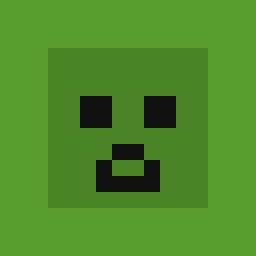
Block art
Creeper face
Wool palette · 32 blocks wide
Original
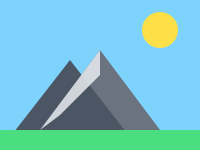
Block art
Mountain landscape
Full Blocks · dithering · 64 wide
Original
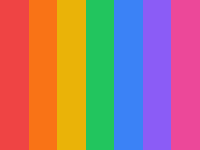
Block art
Color gradient
Concrete palette · 48 blocks wide
How it works
How to convert an image into Minecraft blocks
Upload the image, set the block width, inspect the generated grid, then use the counts and PNG reference to place blocks row by row.
- 01
Upload an image
PNG, JPG, JPEG, or WebP all work.
local file
- 02
Choose the Minecraft block width
start smaller for survival builds.
4 palettes
- 03
Preview the generated block grid
inspect names, colors, and counts.
live preview
- 04
Copy the material list or export a PNG reference for manual placement.
Copy the material list or export a PNG reference for manual placement.
build-ready
Why use this converter
Built for block-by-block Minecraft planning
Every grid cell becomes a block choice
Each cell resolves to a named Minecraft block, so the preview can be followed as a real build plan.
Counts update with every setting
Change width, palette, brightness, contrast, or dithering and the material list recalculates immediately.
Palette controls the available blocks
Limit the output to Wool, Concrete, Terracotta, or use Full Blocks when color accuracy matters more.
Designed for manual placement
Export a readable PNG block reference instead of trying to copy the original image by eye.
Know the cost before gathering
The total block count helps you decide whether the image is realistic for survival or needs a smaller width.
Local image processing
The image is decoded and converted in your browser, so you can test ideas without uploading files.
Who uses it
Best uses for image to Minecraft blocks
Survival block checklist
Convert an image first, then gather exactly the block types and quantities the grid requires.
Logos, banners, and signs
Flat artwork works well because the converter can keep shapes clear with fewer block colors.
Manual wall decorations
Create spawn graphics, room icons, or small wall art without needing a schematic workflow.
Minecraft Image to Blocks Converter FAQ
Answers about converting images to Minecraft blocks, block counts, palettes, manual building, and export options.
01How do I convert an image into Minecraft blocks?
Upload the image, choose the output width and block palette, then the tool samples the picture into a grid and matches each cell to the nearest Minecraft block color. You can preview the grid, copy the block counts, and export a PNG reference.
02What is the difference between image to blocks and pixel art?
Image to blocks focuses on the practical build plan: named blocks, exact counts, and a grid you can place manually. Pixel art is the visual style that the block grid creates.
03Do I get block counts and a material list?
Yes. The material list updates alongside the preview and shows how many of each Minecraft block the converted image needs.
04What width should I use when converting an image to blocks?
For small survival builds, try 16 to 48 blocks wide. For larger wall art, 64 to 128 blocks keeps more detail but increases material cost quickly.
05Which Minecraft block palette should I choose?
Wool is easy to read and classic for pixel art, Concrete gives cleaner saturated colors, Terracotta gives warmer tones, and Full Blocks offers the widest color matching range.
06Can I export the block grid as a schematic?
Yes. You can export the generated block grid as a .schem file for WorldEdit, or export PNG if you want to build the image manually block by block.
07Does the image get uploaded?
No. Image decoding, block matching, preview, and export all run in your browser. Your image does not need to leave your device.