Minecraft Pixel Art Generator
Use Minecraft Pixel Art Generator to turn photos, logos, and sprites into block-based pixel art with a live preview, exact block counts, and a PNG build guide.
Converter
Upload, tune, preview, export
Drag & drop a file here
PNG, JPG, JPEG, and WebP are supported. Your file is processed locally in your browser and never sent to a server.
Turn pictures into Minecraft pixel art
Compare sample images against their block-art versions to judge detail, palette, and build size.
Original

Block art
Creeper face
Wool palette · 32 blocks wide
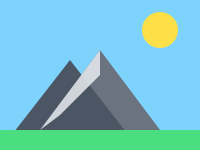
Original
Block art
Mountain landscape
Full Blocks · dithering · 64 wide
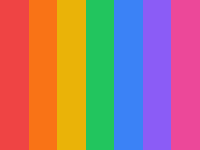
Original
Block art
Color gradient
Concrete palette · 48 blocks wide
How it works
How the Minecraft Pixel Art Generator works
Test an image, pick a pixel art size, choose the Minecraft block palette, then export a guide that matches the visible block art.
- 01
Upload a photo, logo, sprite, or other image.
Upload a photo, logo, sprite, or other image.
local file
- 02
Choose the pixel art size and Minecraft block palette.
Choose the pixel art size and Minecraft block palette.
4 palettes
- 03
Preview the Minecraft pixel art grid and block count.
Preview the Minecraft pixel art grid and block count.
live preview
- 04
Export the PNG build guide or copy the material list.
Export the PNG build guide or copy the material list.
build-ready
Why use this converter
Built for Minecraft pixel art decisions
Pixel art first, not file conversion
The preview is tuned for how the result will read as Minecraft pixel art, not just as a resized image.
Grid lines for placement
Toggle grid lines and zoom so the pixel art remains easy to follow while building.
Palette tradeoffs are visible
Switch between Wool, Concrete, Terracotta, and Full Blocks to pick the look before exporting.
Dithering for photo-like images
Use Floyd-Steinberg dithering when gradients need smoother transitions across block colors.
Build guide for sharing
Export the PNG guide and copy the block count so the team knows what to place and gather.
Free browser workflow
Generate the pixel art without an account, watermark, or server-side image upload.
Who uses it
Pixel art workflows this page fits
Character and logo art
Create recognizable Minecraft pixel art from logos, sprites, avatars, or simple illustrations.
Creative world decoration
Generate wall pieces, floors, posters, and room details for creative builds.
Team build references
Share one PNG build guide and one material list so multiple builders can follow the same plan.
Minecraft Pixel Art Generator FAQ
Answers about pixel art size, palettes, dithering, browser privacy, PNG export, and WorldEdit schematic export.
01Is this Minecraft pixel art generator free?
Yes. Upload, convert, preview, copy the material list, and export PNG are all free with no sign-up and no watermark.
02What does a Minecraft pixel art generator do?
A Minecraft pixel art generator turns a photo, logo, sprite, or illustration into block-based pixel art with a grid preview, block counts, and a build guide.
03Can I make Minecraft pixel art from a photo or logo?
Yes. Upload a photo, logo, sprite, or simple illustration, then choose the pixel art size and palette before exporting your build guide.
04Does the image leave my device?
No. Everything runs in your browser using the Canvas API. Your image is never sent to any server.
05Which palette works best for Minecraft pixel art?
Wool gives classic, saturated colors. Concrete gives cleaner, more contrasted tones. Terracotta gives warm earthy tones. Full Blocks uses all common blocks for the widest color range.
06What size should Minecraft pixel art be?
Small icons often work at 16 to 32 blocks wide. Characters, logos, and wall art usually look better at 48 to 128 blocks wide, depending on how much detail you want to keep.
07What is dithering and should I use it?
Dithering blends colors across block boundaries using Floyd-Steinberg for smoother gradients. Good for photos — turn it off for flat logos or solid-color designs.
08Can I export a schematic for WorldEdit?
Yes. Export .schem creates a one-block-thick vertical wall schematic that matches the visible block grid and can be imported with WorldEdit.